
Adding a task or habit
From the + button to Save, add a one-off task or a repeating habit, with its category and time.
6 stepsEvery habit starts small. Add a task in under a minute, and Rifaq will put it in front of you on every day it's due.
-
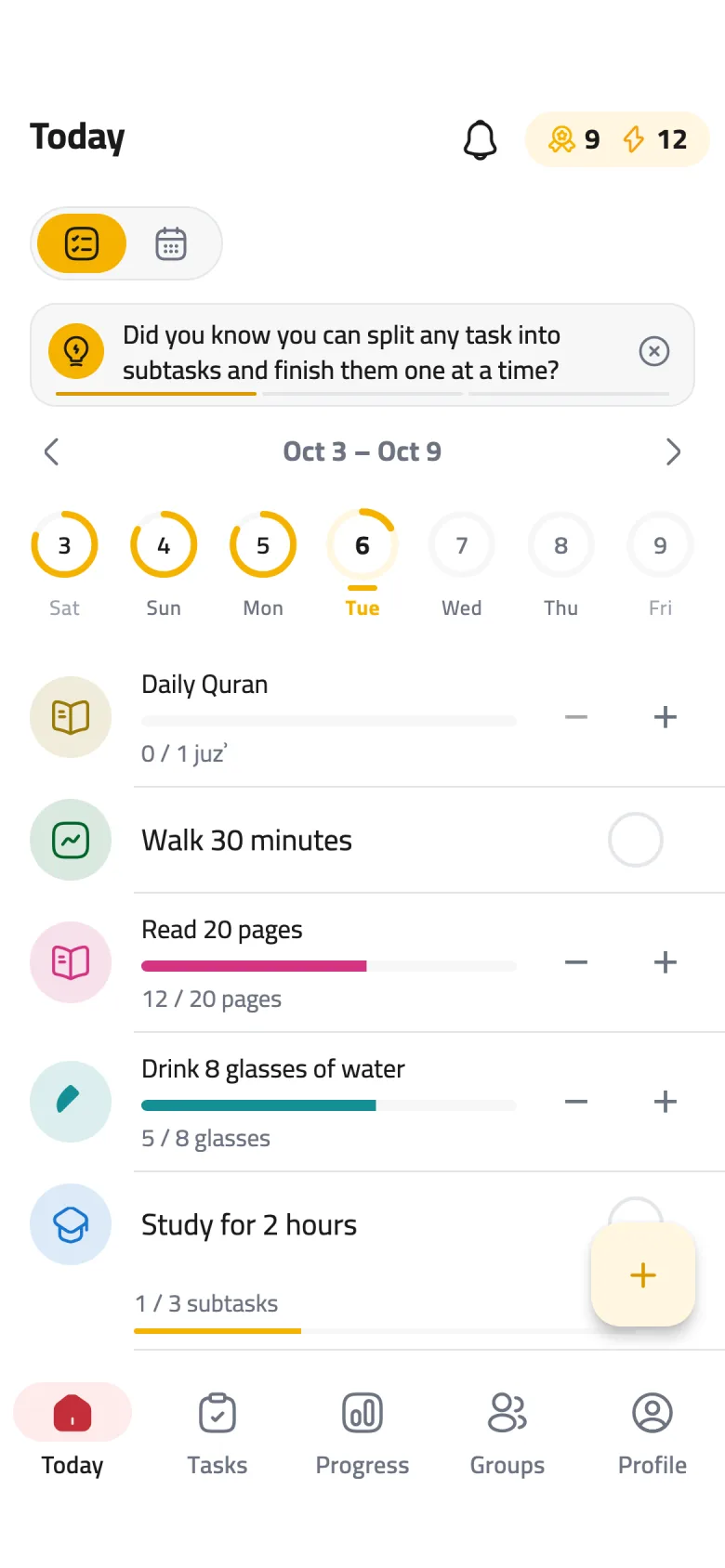
Step 1 of 6
Tap the + button
On the Today screen, tap + to open New task.
-
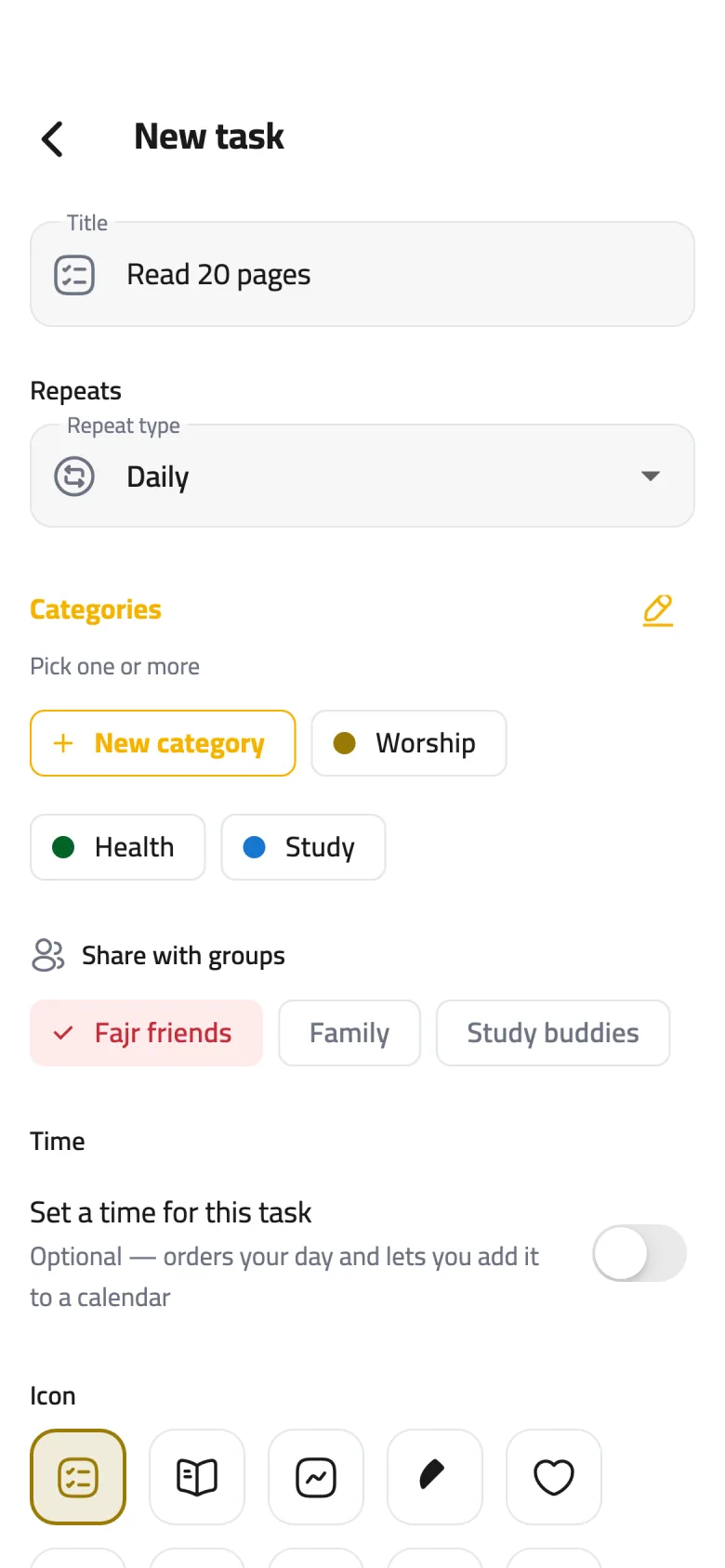
Step 2 of 6
Write a title
In Title, write what you want to do in a few words, like "Read 20 pages". A short, clear title is easier to act on.
-
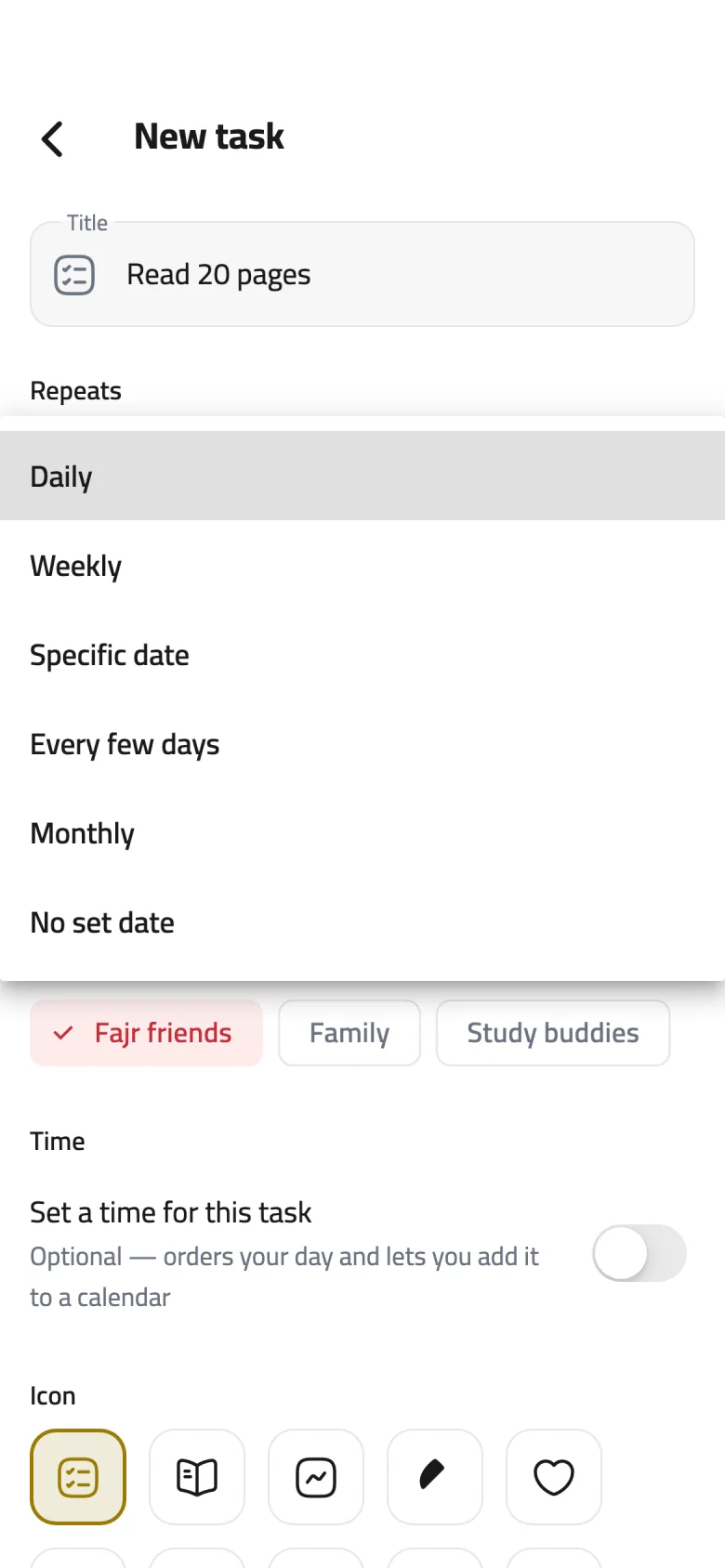
Step 3 of 6
Choose how often
Open the Repeats menu and pick Daily, Weekly on the days you choose, Specific date for a one-off, Every few days, or Monthly. No set date stays on your list until you finish it, and isn't counted in the day's percentage until then.
-
Step 4 of 6
Pick a category
Under Categories, tap one or more, or tap New category to create one on the spot. It's optional, and it keeps your Tasks list tidy.
-
Step 5 of 6
Set a time if you like
Turn on Set a time for this task, then pick the time and duration. To get a notification at that time, turn on Alarm at the task time in Settings.
-
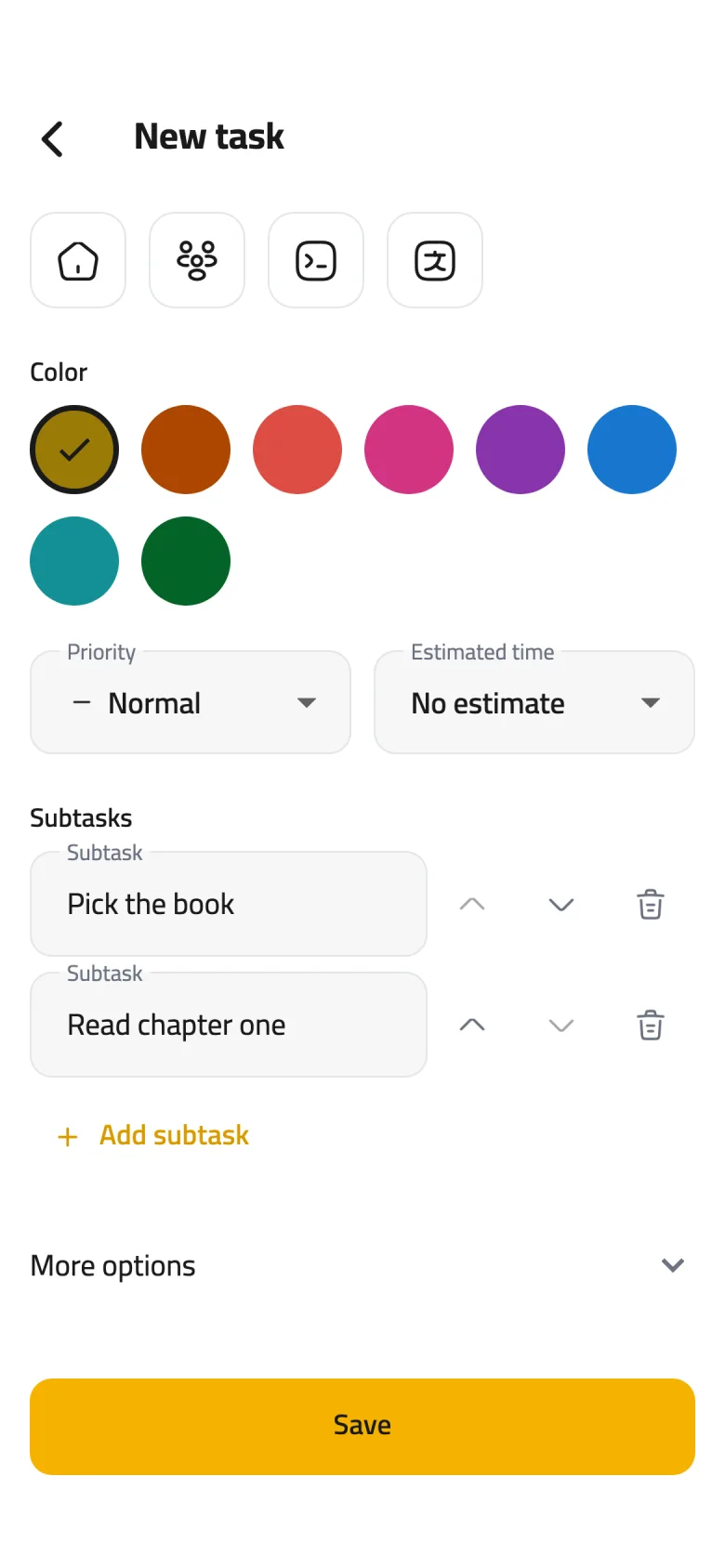
Step 6 of 6
Save
Tap Save at the bottom, and your task shows up on Today on every day it's due.