
Goal boards
Gather your big goals into boards, break them into smaller ones, and watch each board fill up as you go.
5 stepsA goal board is a home for your bigger plans: a whole year, a month, or a course you are taking. Build it once, then tick off each goal as you reach it.
-
Step 1 of 5
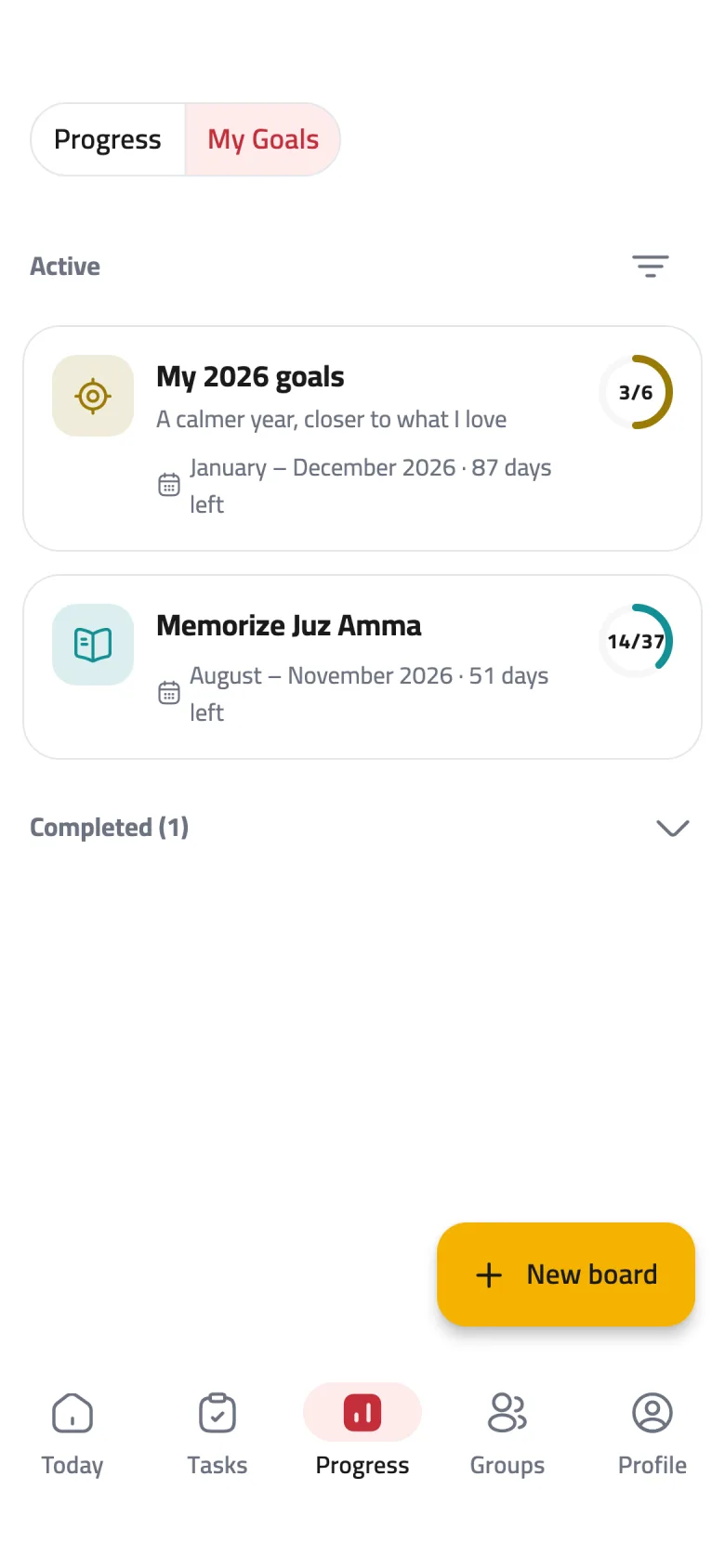
Your boards in My Goals
Tap Progress in the bottom bar, then My Goals at the top. Each card shows the board's dates, the days left, and a ring with how many goals are done. Tap a card to open the board.
-
Step 2 of 5
Create a new board
Tap New board, type a name and, if you like, a description, then pick an icon and a colour. Set a start and end if you want a clear time frame, then tap Save.
-
Step 3 of 5
Add your goals
Tap Add a goal, type it, then press the enter key on your keyboard. The field stays open, so you can type the next goal straight away.
-
Step 4 of 5
Group goals inside a goal
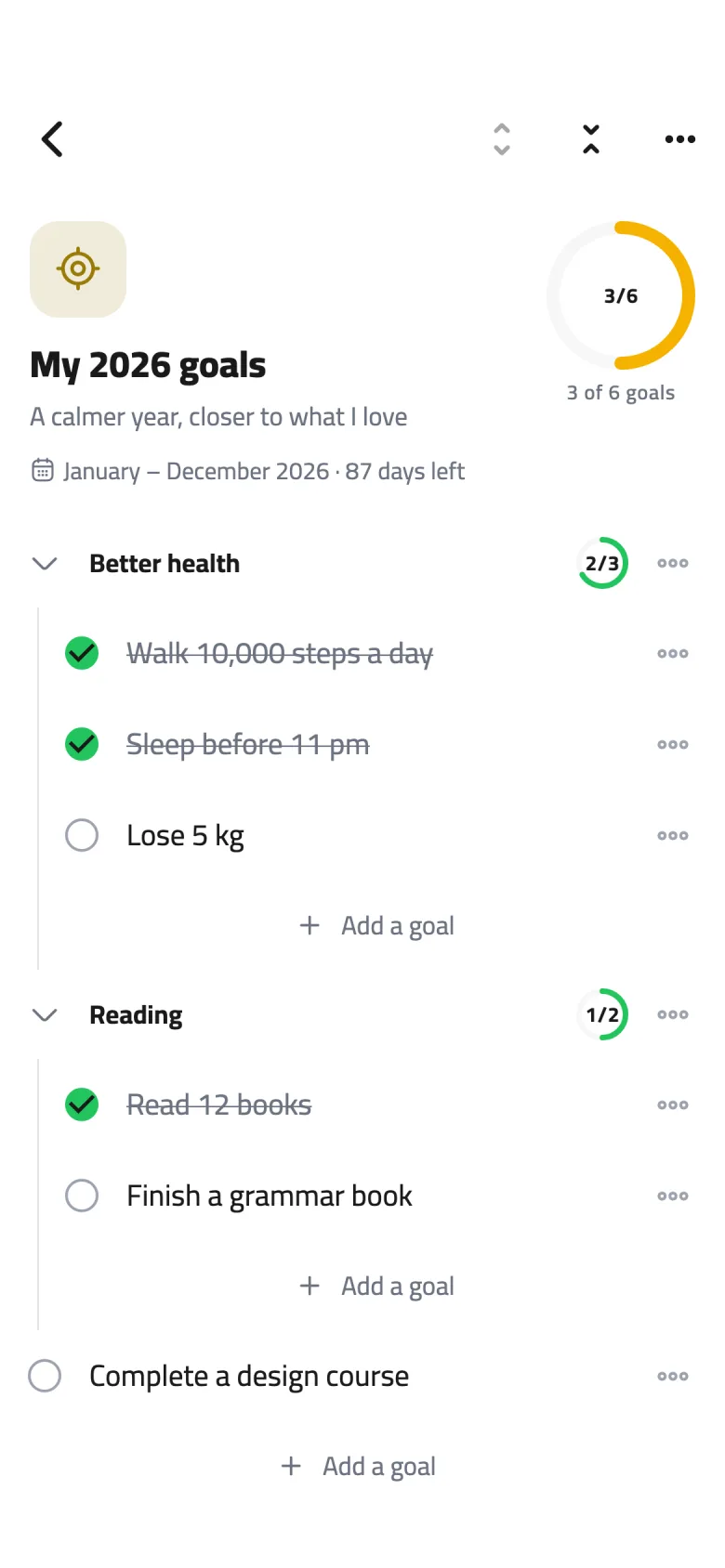
From the options button next to any goal, choose Add inside to turn it into a goal that holds smaller ones. It shows how many of its goals are done, like 2/3, and tapping it folds or unfolds what is inside.
-
Step 5 of 5
Tick off what you finish
Tap the circle next to a goal when you reach it; it is crossed out and the board's ring moves forward. When every goal is done, we ask “Mark the board as completed?” — tap Yes, it is done.