
Home-screen widgets
Follow your day, streak, group and goals from the home screen, and tick off tasks without opening the app.
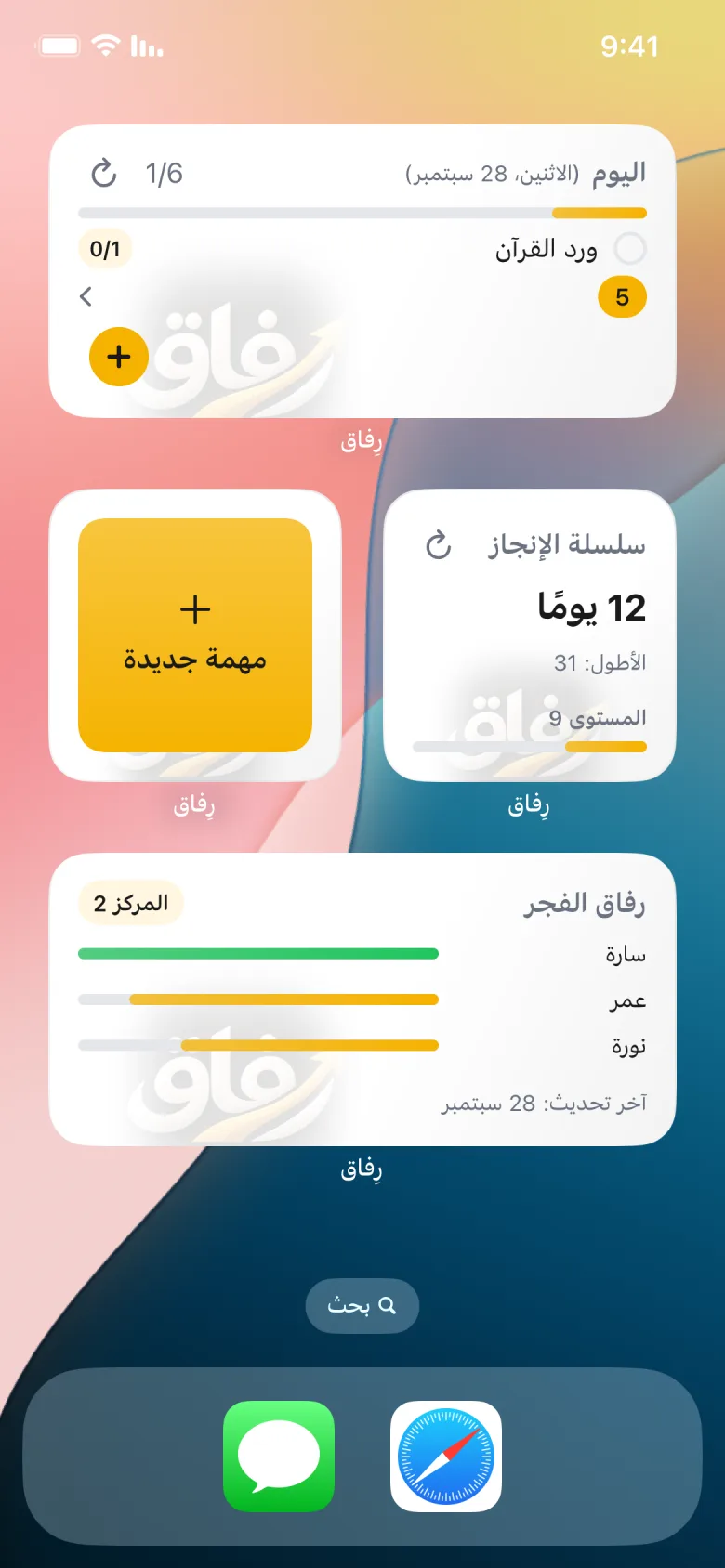
6 stepsRifaq offers six home-screen widgets on iPhone and Android. Pick the ones that suit you and place as many as you like.
-
Step 1 of 6
Meet the widgets
Pictured: your tasks for today with your progress, a New task button for quick adding, your day streak and level, and your rank with how your group buddies are doing. There are also two goal widgets: Goal board and Board progress.
-
Step 2 of 6
Add one on iPhone
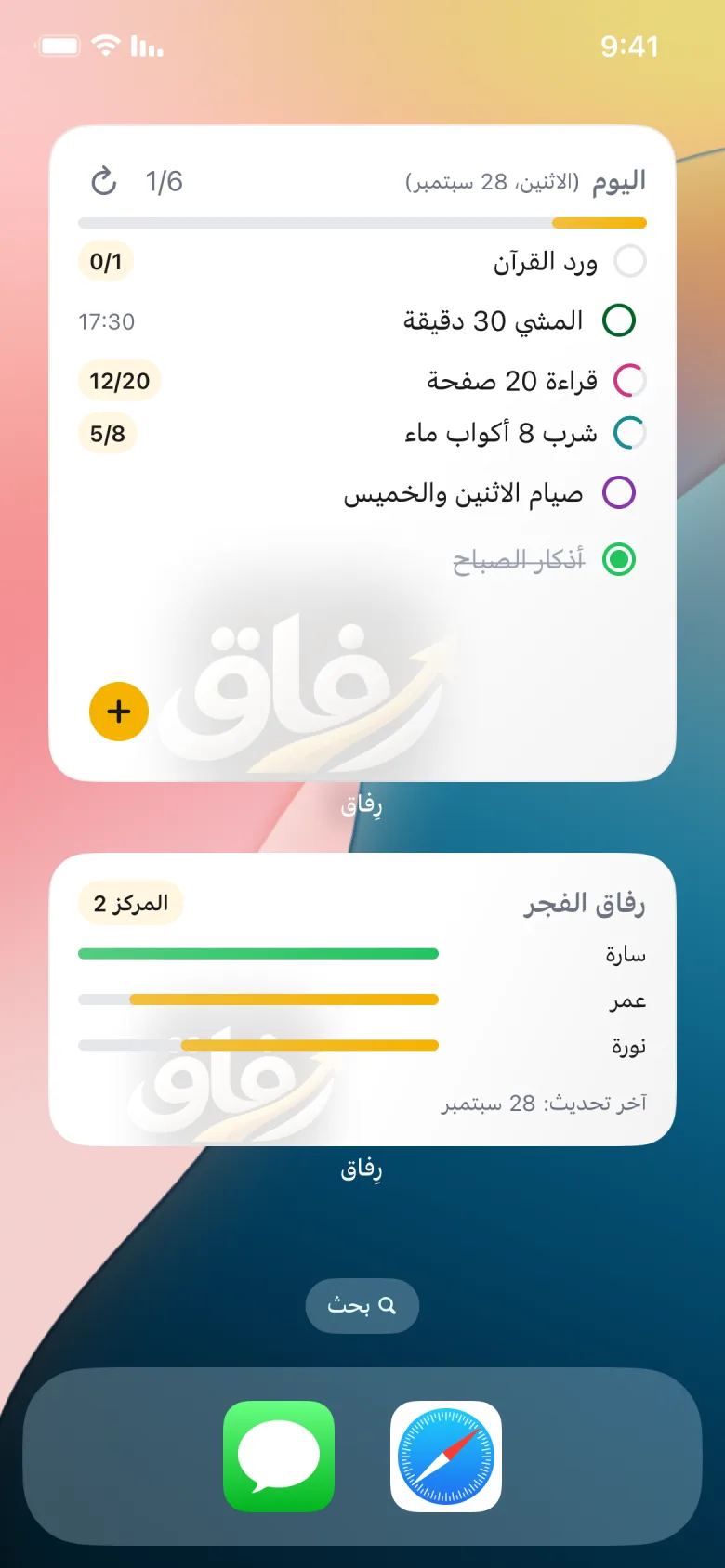
Touch and hold an empty spot on the home screen until the icons jiggle, then tap + at the top (on newer iOS: Edit, then Add Widget). Search for Rifaq, pick a widget and a size, then add it. The large size shows your whole day, as in the picture.
-
Step 3 of 6
Add one on Android
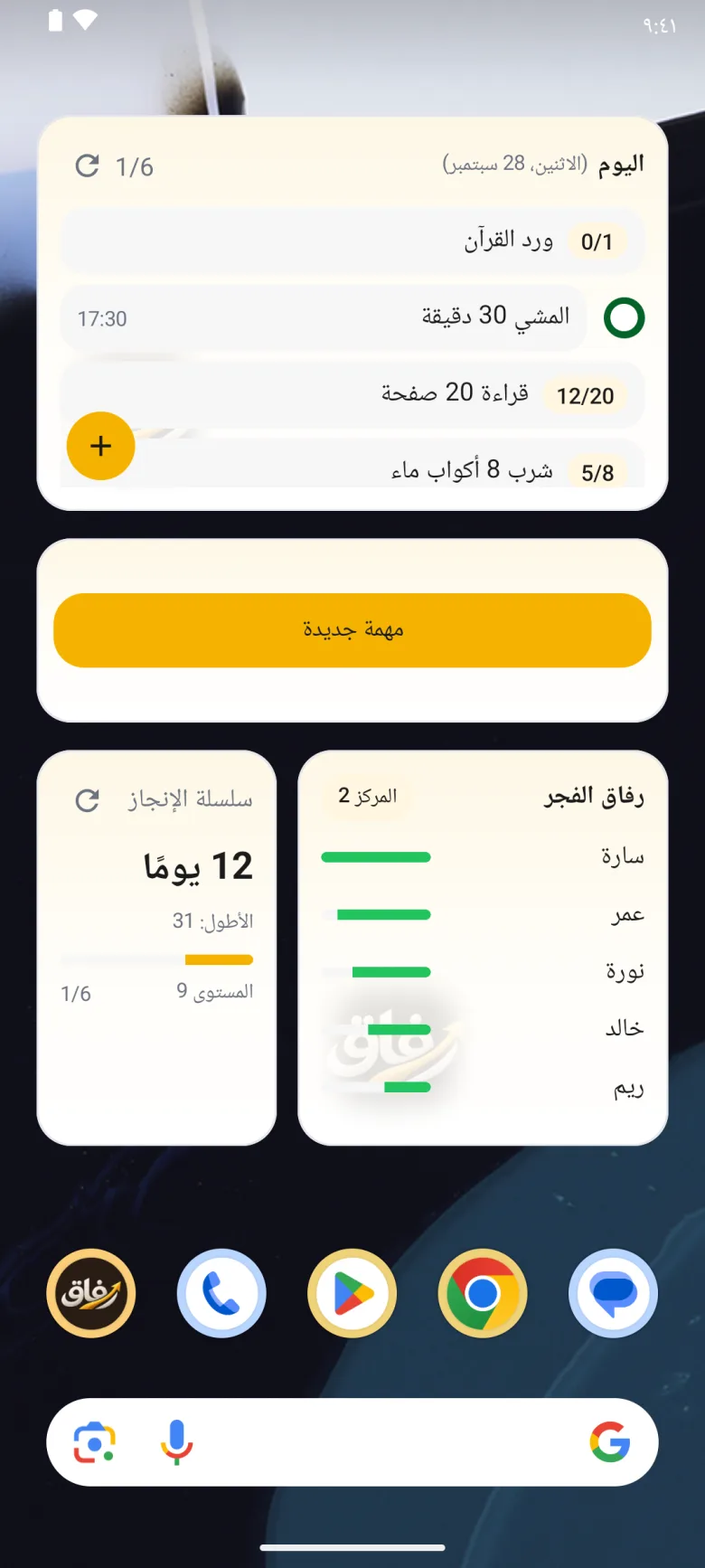
Touch and hold an empty spot on the home screen and choose Widgets. Find Rifaq, then hold a widget and drag it into place; drag its edges to resize it.
-
Step 4 of 6
Tick tasks off the widget
Tap the circle next to a task to mark it done without opening the app. Tasks with a count, like 12/20, open the app so you can log your progress, and the + button starts a new task.
-
Step 5 of 6
One board per goals widget
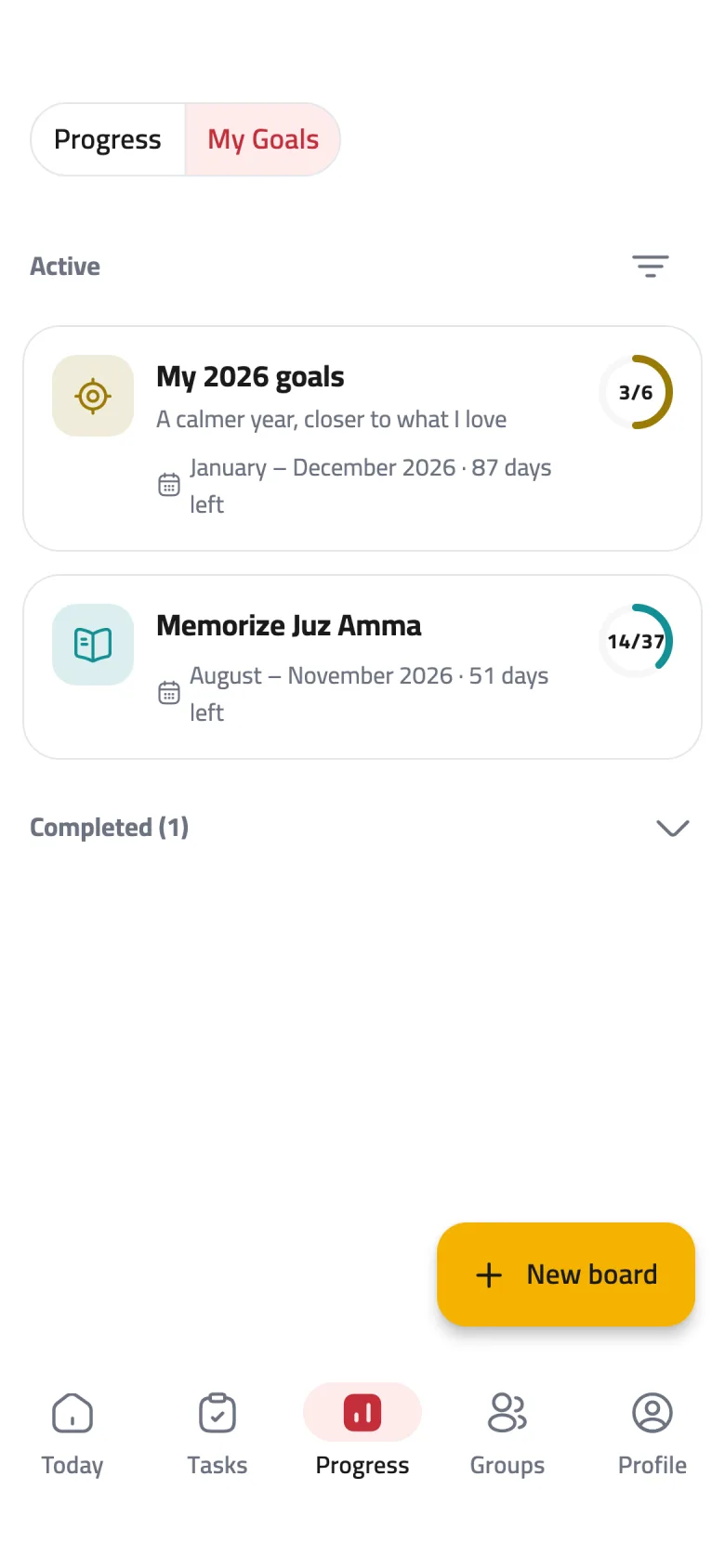
Each goals widget shows a single board you choose from your active boards. On Android, a “Choose the board to show” list appears when you place it; to change it later, touch and hold the widget and open its settings. On iPhone, touch and hold the widget, choose Edit Widget, then pick the board.
-
Step 6 of 6
Two widgets for goals
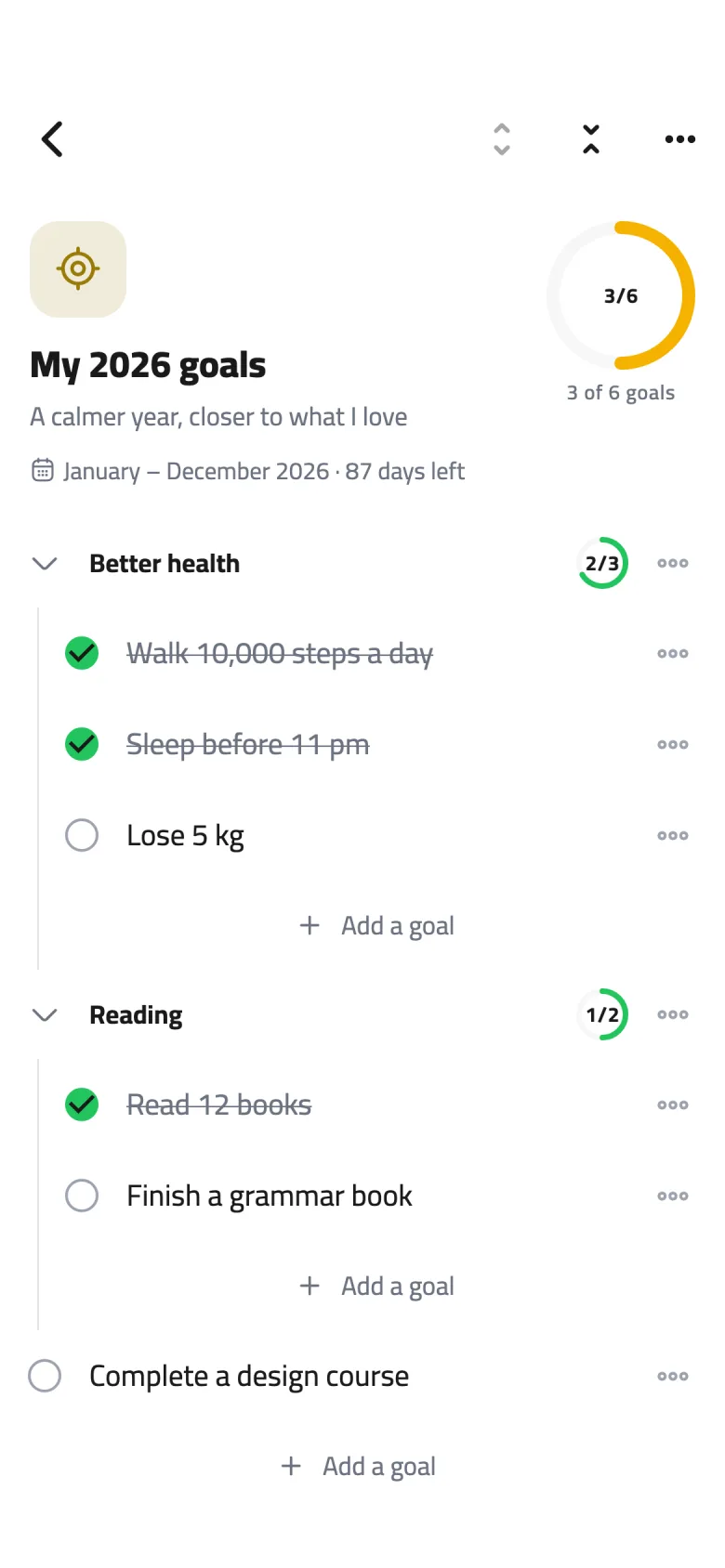
Goal board lists the board's goals so you can tick them with a tap, and the small Board progress shows how far along the board is and what is next. Place several if you like, each with a different board.
Tips
On iPhone, ticking tasks and goals from a widget, and choosing its board, need iOS 17 or later. On older versions, tapping a widget opens the app, and the goals widget shows the board you opened last.
The refresh button at the top of the Today and Streak widgets pulls in your latest progress right away.