
Groups and inviting friends
Create a group in a minute, invite friends with one link, and join a group a friend invited you to.
6 stepsHabits stick better with company. Start a group for your family, friends or classmates and keep each other going, one day at a time.
-
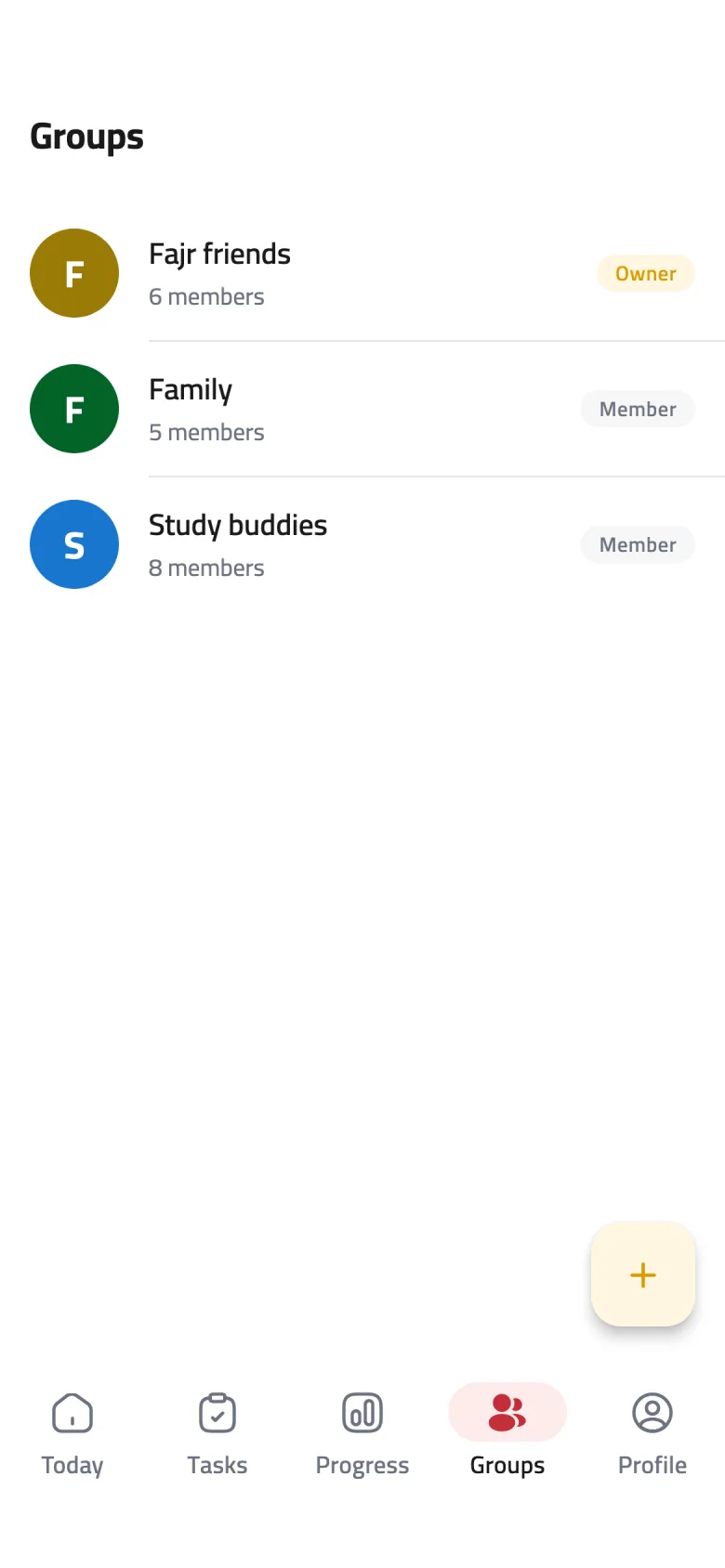
Step 1 of 6
Open the Groups tab
Tap Groups in the bottom bar to see all your groups, then tap the + button at the bottom of the screen.
-
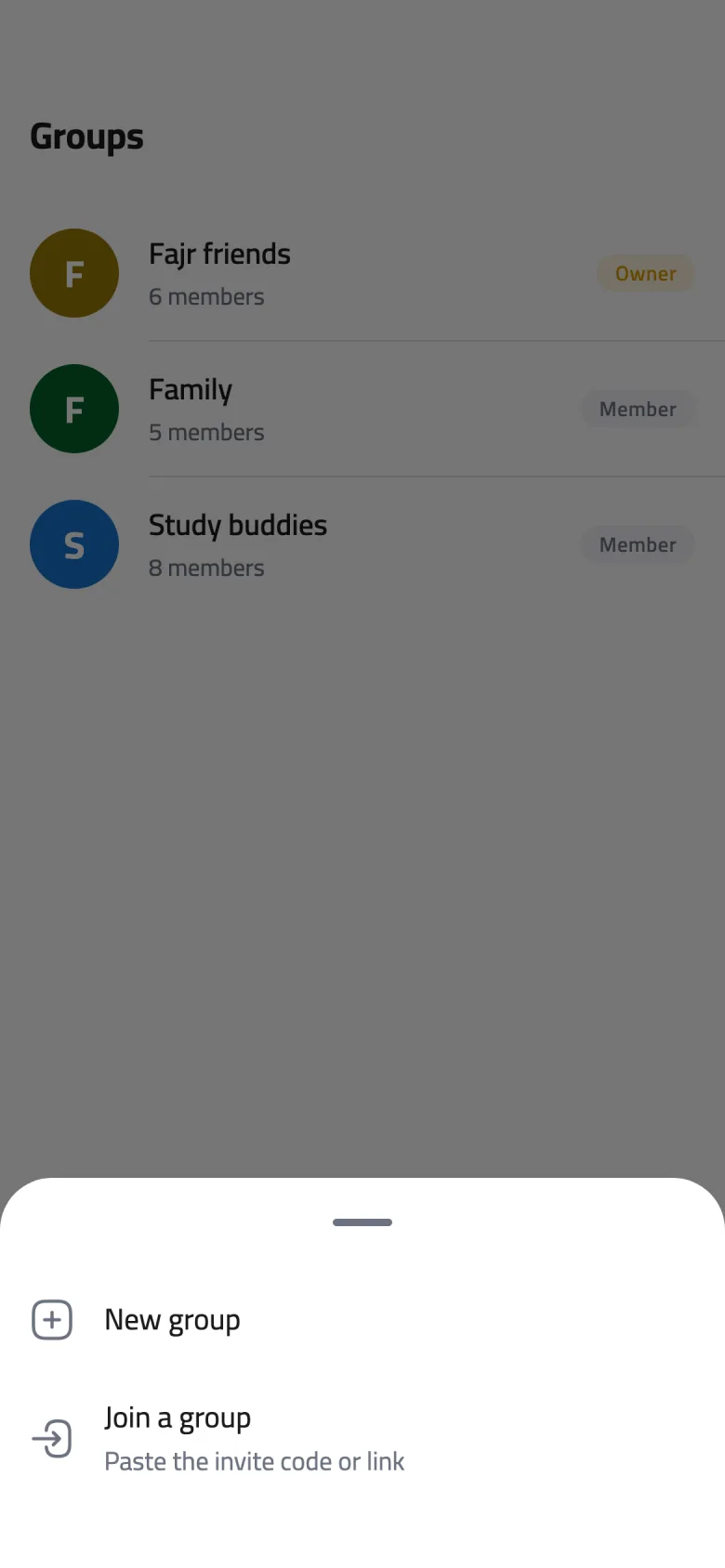
Step 2 of 6
Choose “New group”
A short menu slides up. Tap New group to start a group of your own.
-
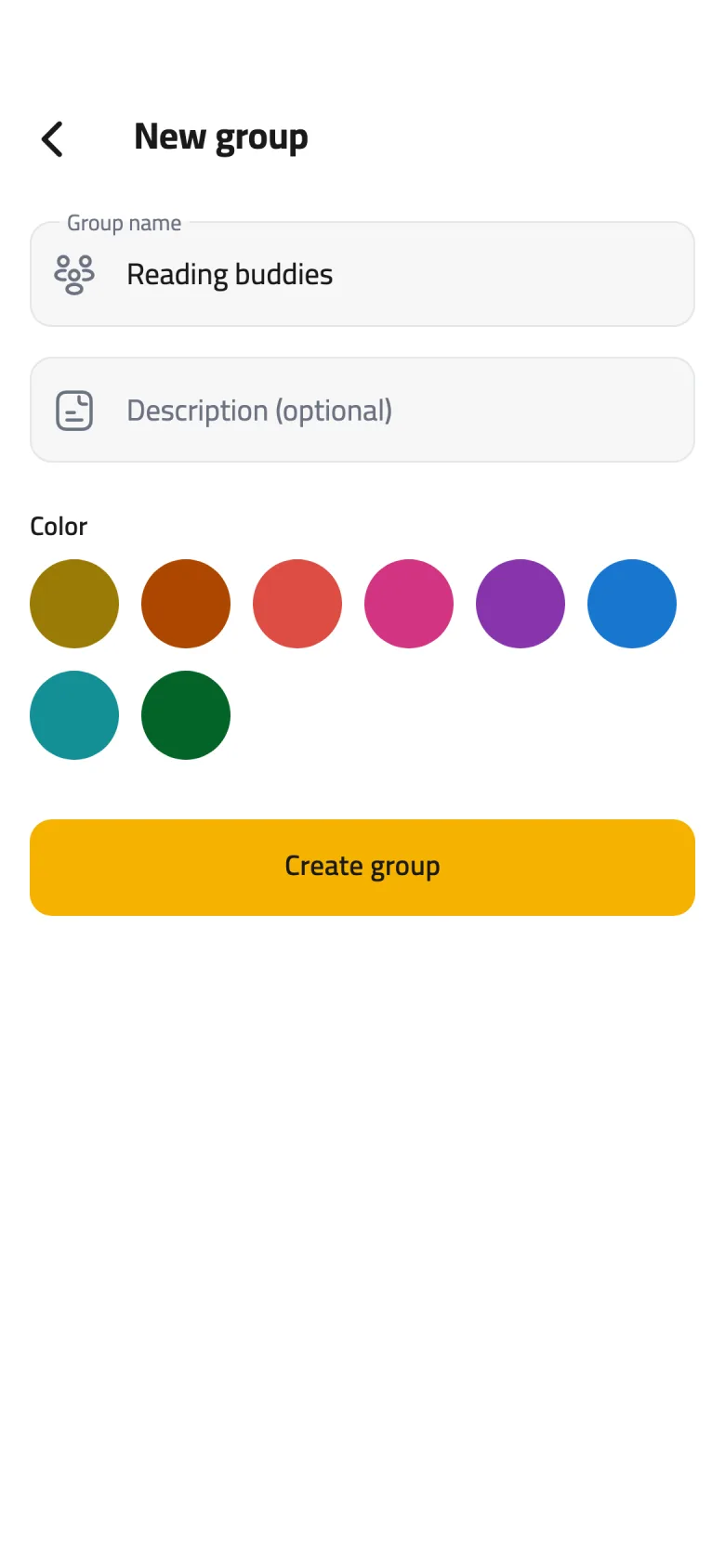
Step 3 of 6
Name your group
Type a name your friends will recognize in Group name. You can also add a short description and pick a color.
-
Step 4 of 6
Create it
Tap Create group. The group's page opens right away, and you're its owner.
-
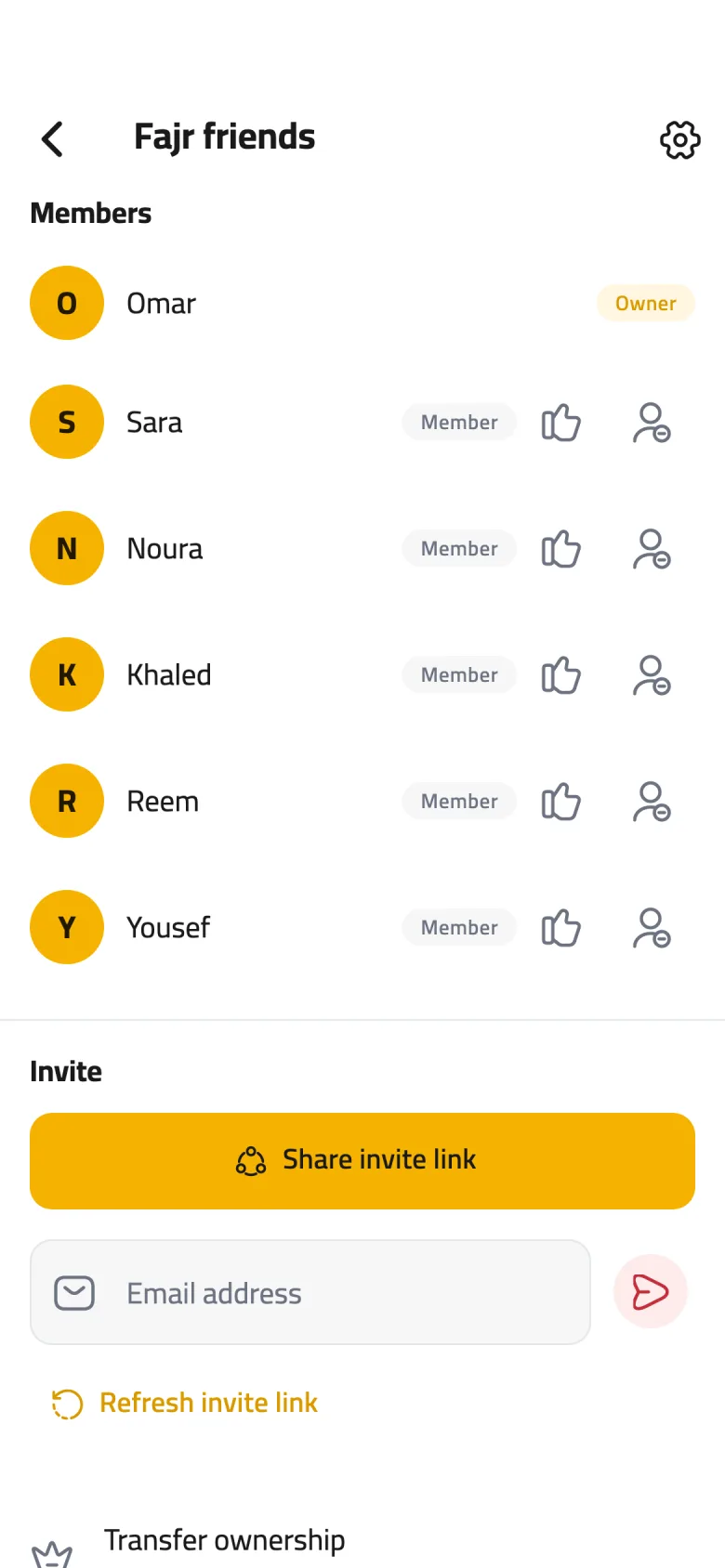
Step 5 of 6
Send the invite link
Scroll down the group page to Invite and tap Share invite link to send it through any app. You can also type a friend's email address and tap the send button beside it to email them the invite.
-
Step 6 of 6
Join with a link you received
Open the link your friend sent and tap Join group. If the link doesn't open the app, tap + on the Groups tab, choose Join a group, and paste the whole link.
Tips
Always share the link rather than the code on its own — it's easier and far less error-prone. If you see “This group is full”, the group has reached its member limit.
The group's owner can tap Refresh invite link at any time, and the old link stops working. Use it if a link reached someone it shouldn't have.