
Subtasks
Split a big task into small steps and tick them off one by one on the Today screen.
5 stepsA task like "Study for 2 hours" gets easier once you break it into steps. Add the steps in the task form, then work through them one at a time.
-
Step 1 of 5
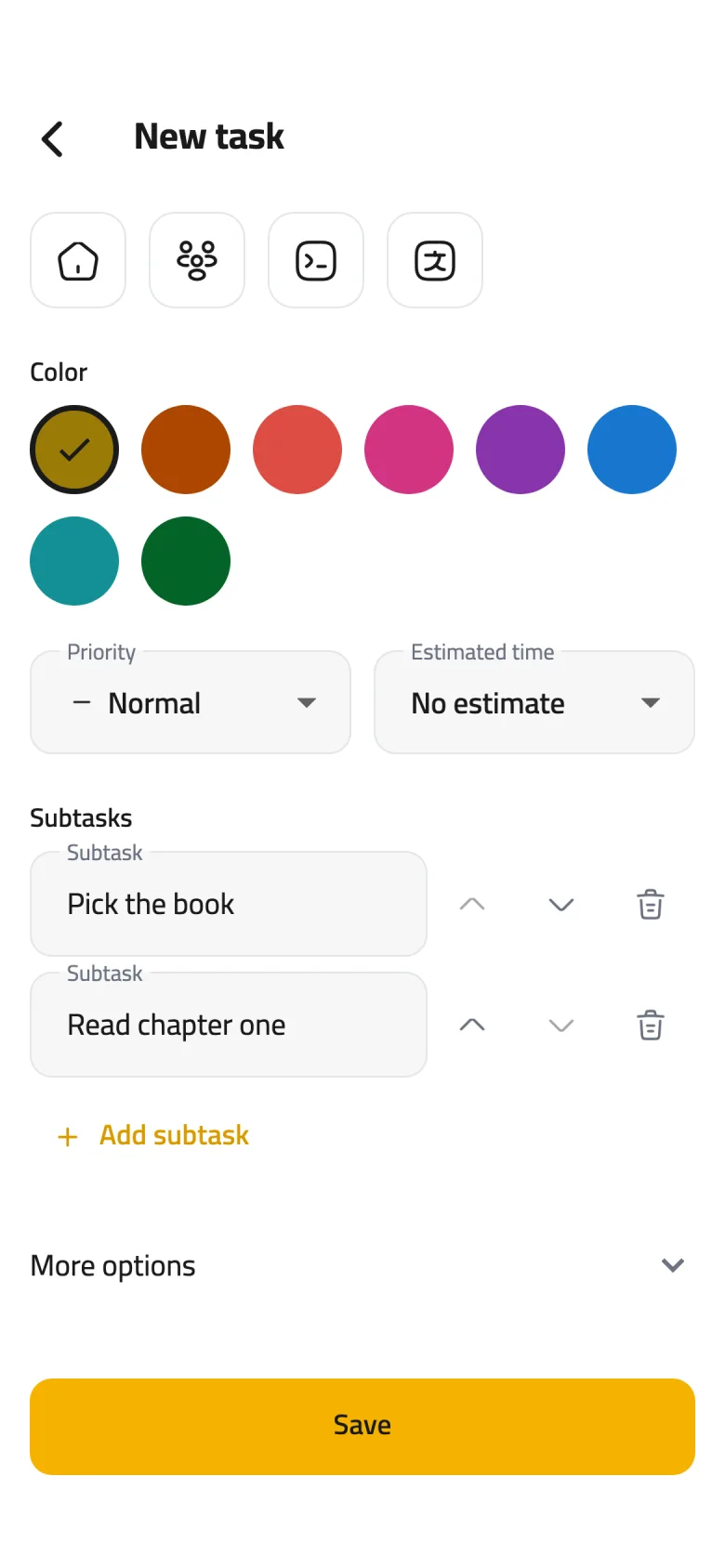
Add a step
In the task form, under Subtasks, tap Add subtask and type the step. Repeat for each one.
-
Step 2 of 5
Put them in order
Move any step up or down with the arrows beside it, and remove it with the trash icon.
-
Step 3 of 5
Save the task
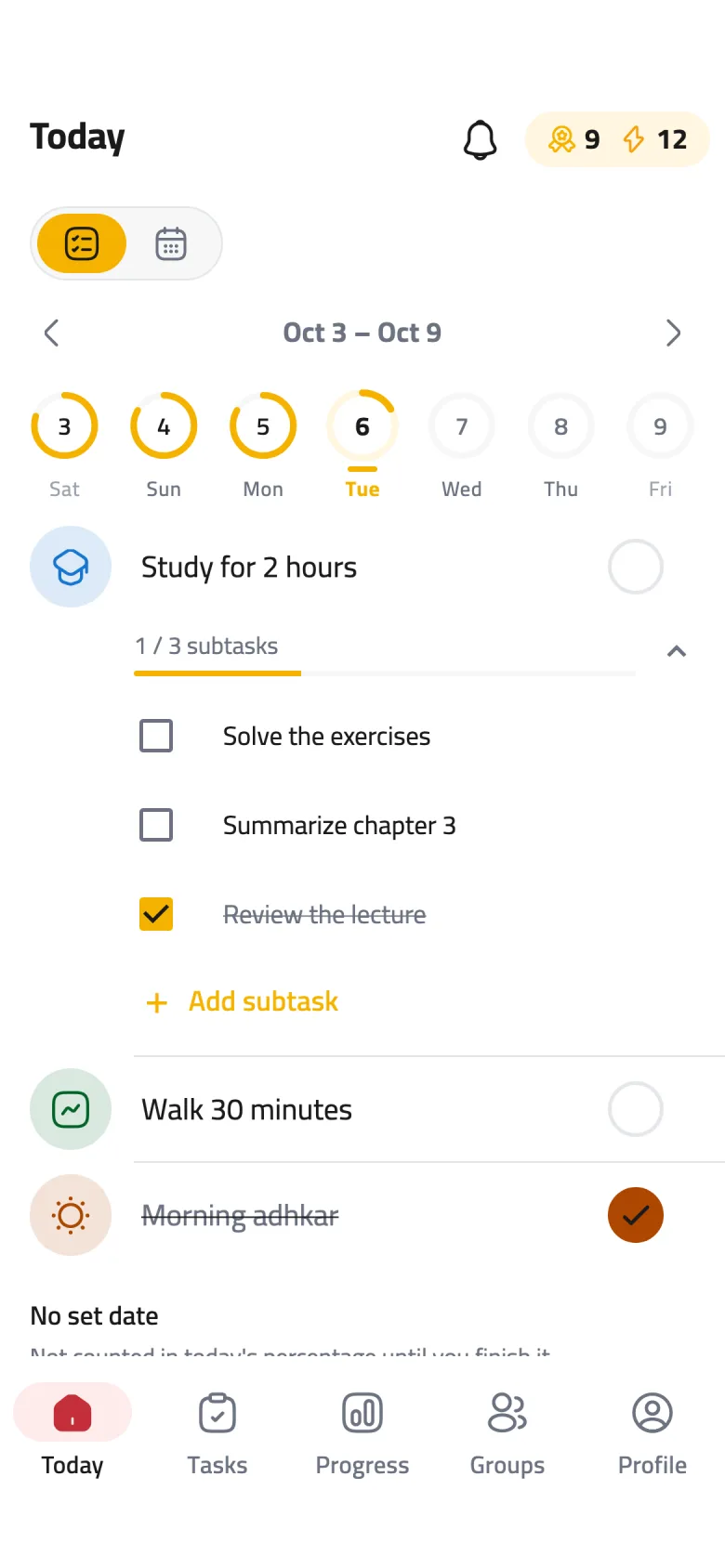
Tap Save. On Today, the task now shows how many of its steps you've done, like "1 / 3 subtasks".
-
Step 4 of 5
Show the steps
Tap the progress line or the arrow beside it to show the steps, and tap again to hide them.
-
Step 5 of 5
Tick off what you've done
Tap the box next to a step when you finish it, and the bar moves forward. To rename a step, tap its name.