
My space and your timelines
Line up your books, lessons and links into a timeline you follow step by step, and read your books in Rifaq.
7 stepsMy space keeps your tasks just as you know them, and adds Timelines: an ordered path for what you want to read or learn, one book or lesson after another.
-
Step 1 of 7
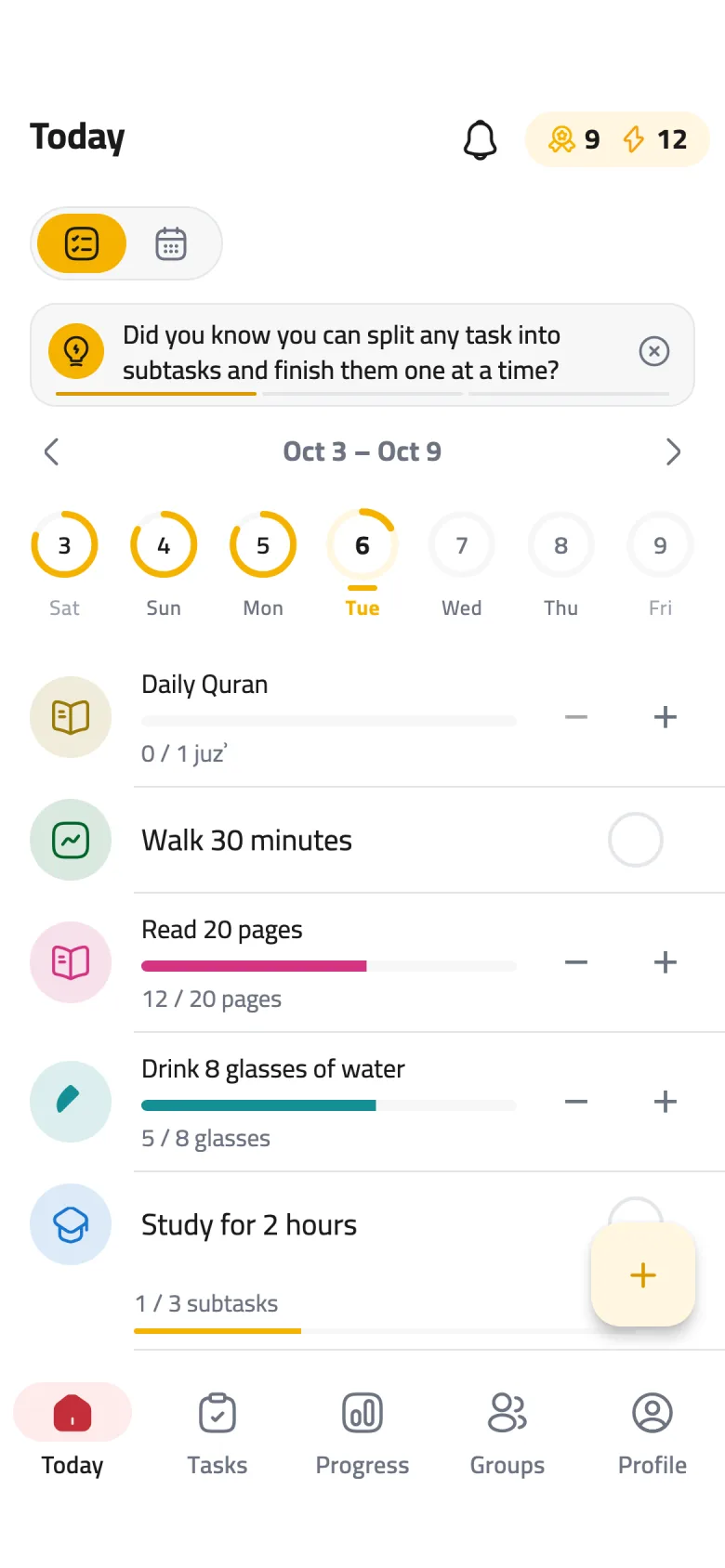
My space replaces Tasks
The second tab in the bottom bar is now called My space. Open Task inventory there to find all your tasks and habits as before, and Timelines to build your path.
-
Step 2 of 7
Create a timeline
In Timelines, tap New timeline, or start your first one from Reading list or A course. Then tap Add a step and pick its kind: a Book to read, a Link to a lesson or video, or a Note with whatever you like.
-
Step 3 of 7
Next up shows where you are
The first step you haven't finished is marked Next up, so you always know where to pick up. Tap the circle next to any step to mark it done, even ahead of its turn: the order guides you, it doesn't lock you in.
-
Step 4 of 7
Attach the book's file
In a Book step, tap Choose a PDF. The file stays on this device and is never uploaded, so on another device the step shows Not attached on this device; tap Attach file and choose your copy of the same book.
-
Step 5 of 7
Read in the Rifaq reader
Tap a book and it opens in the reader where you left off. Search its text, jump around with Contents, Pages and Bookmarks, and use Display for Night or Sepia pages and the page direction. When you reach the last page, tap Mark as done.
-
Step 6 of 7
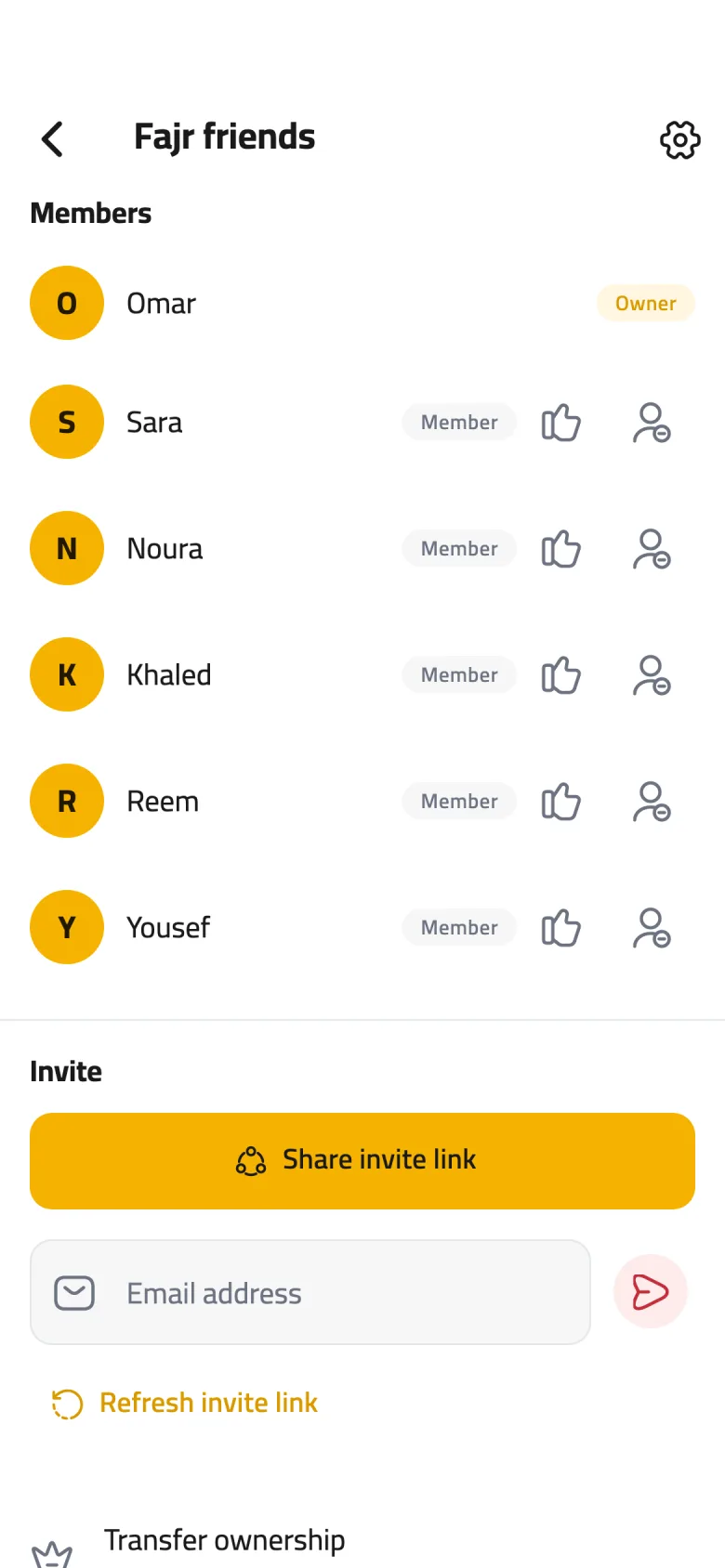
Share a timeline with your groups
From the timeline's options button, choose Share, then pick groups under Share with. Friends tap your name in the group and find it under Timelines: the titles and your progress, with links they can open after a confirm. The book file never reaches them; they see This book isn't shared.
-
Step 7 of 7
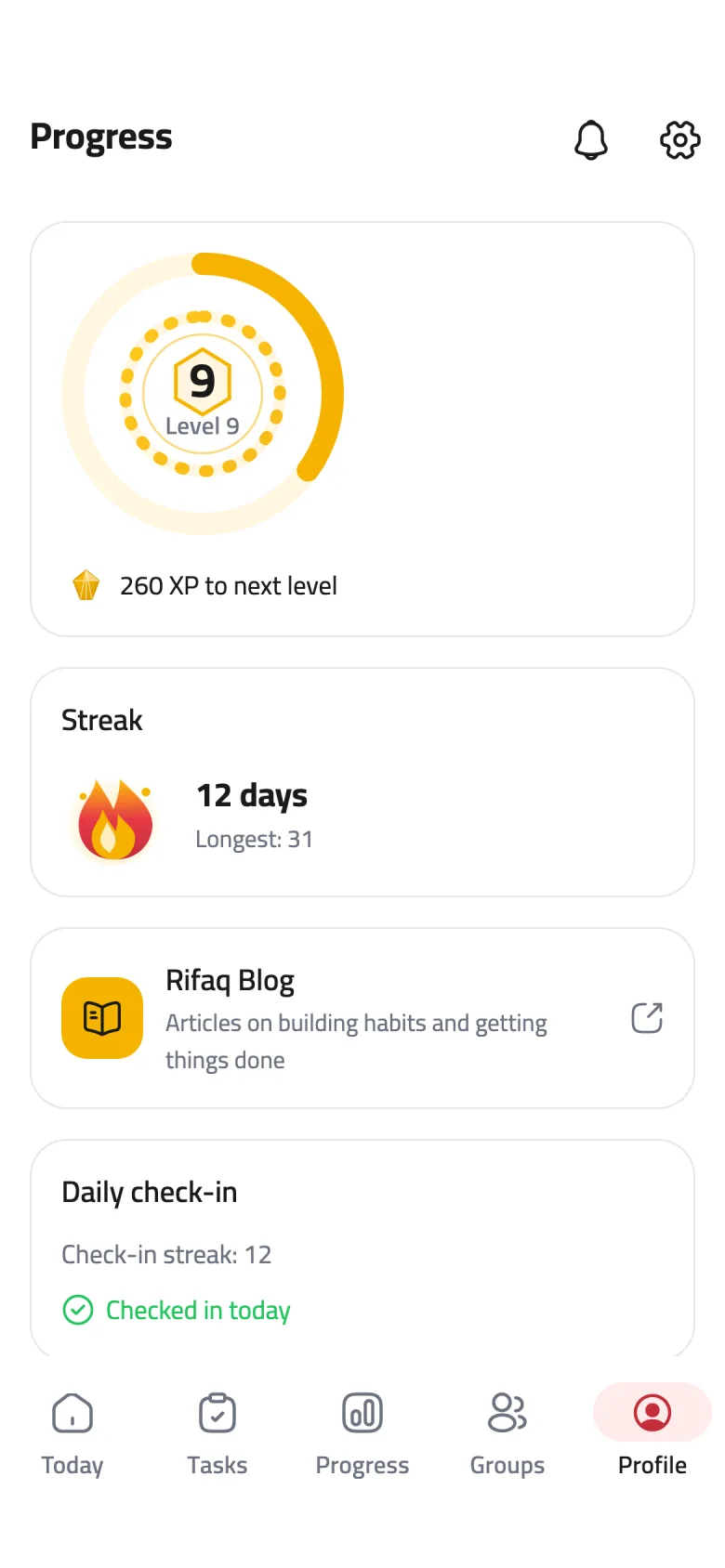
XP for your steps
Steps you finish in your timelines earn XP towards your next level, for a few steps a day. A step counts once it was added at least ten minutes earlier, so set up your timeline first, then work through it.
Tips
Got a PDF in a chat, an email or the Files app? Choose Open with, then Rifaq, and it opens in the same reader, even when you're signed out. It's read-only and isn't added to your timelines.
From the options button, choose Reorder steps to drag them into a new order. Swipe a step aside to delete it, and you have a few seconds to tap Undo.